











Embedded forms: placement, types and examples [2026 guide]


Read summarized version with
 ChatGPT
 Perplexity
 Gemini
 Claude
 Grok
Key takeaways
Definition: An embedded form is a form placed inside a page's layout, between existing content. Visitors see it as they scroll, and nothing covers the page.
Benefits: Embeds don't interrupt the visit and stay in place for every visitor who scrolls past. They can sit next to the product or article they relate to.
Placement: Embeds close to purchase get the most clicks. On sites using Wisepops, cart page embeds had a median click rate 9.8 times that of home page embeds.
Types: Email signup forms, calls to action inside content, product recommendation blocks, offer banners and countdowns, store information, and surveys or quizzes.
How to add one: Paste an embed code from your form or email tool into the page. An onsite tool can also place the embed using a CSS selector.
Measurement: Compare click and signup rates between embeds on similar pages, and test against a control group to see whether an embed adds sales.
A popup asks for attention at a moment you choose. An embedded form waits inside the page until the visitor scrolls to it. That suits product pages, carts and long articles, where covering the page can cost a sale.
This guide covers what embedded forms are, where they get the most clicks, and which types stores run beyond the signup form. You'll also see how to add, personalize and measure them, with examples from real stores.
In this guide:
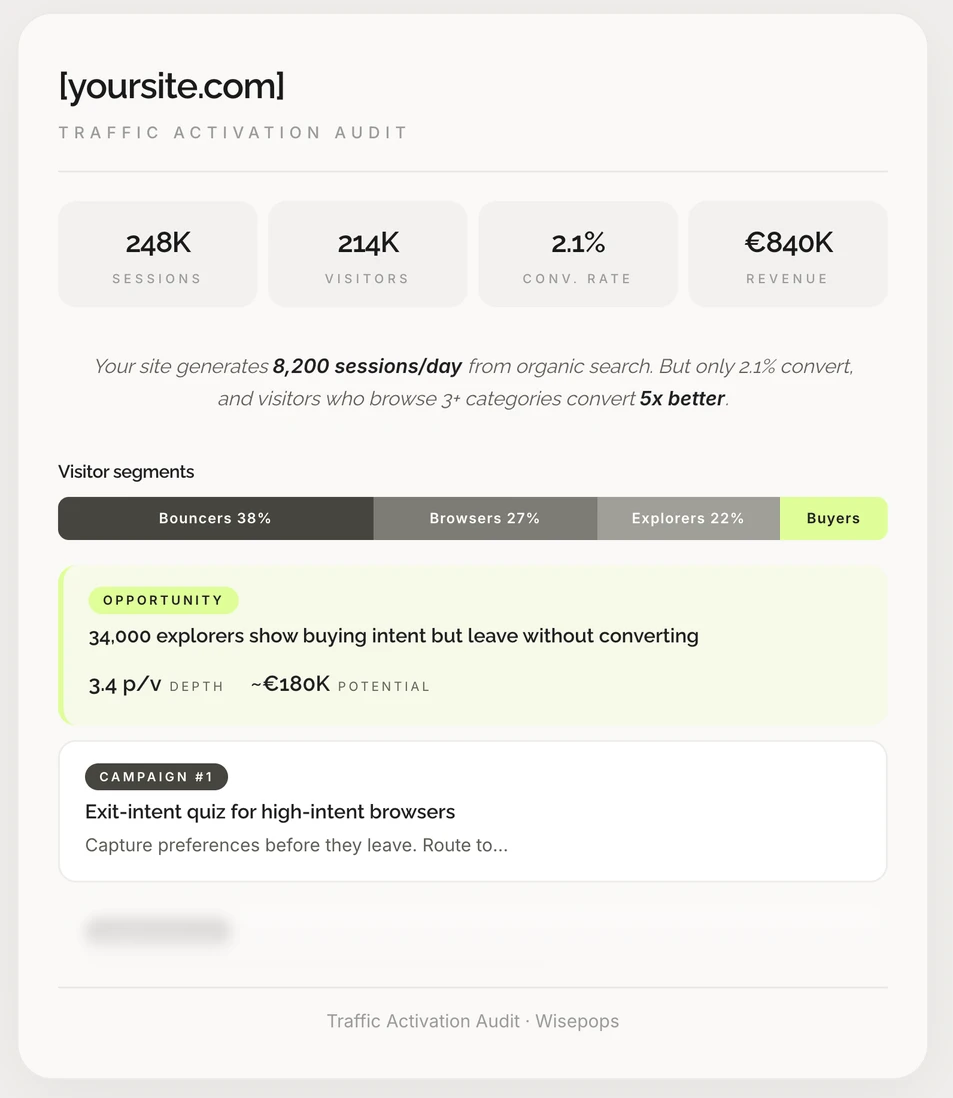
See your segments
Match each visitor to the right campaign
We review your traffic and show which behavioral segments you have, the campaigns that fit each one, and the revenue they could reach.

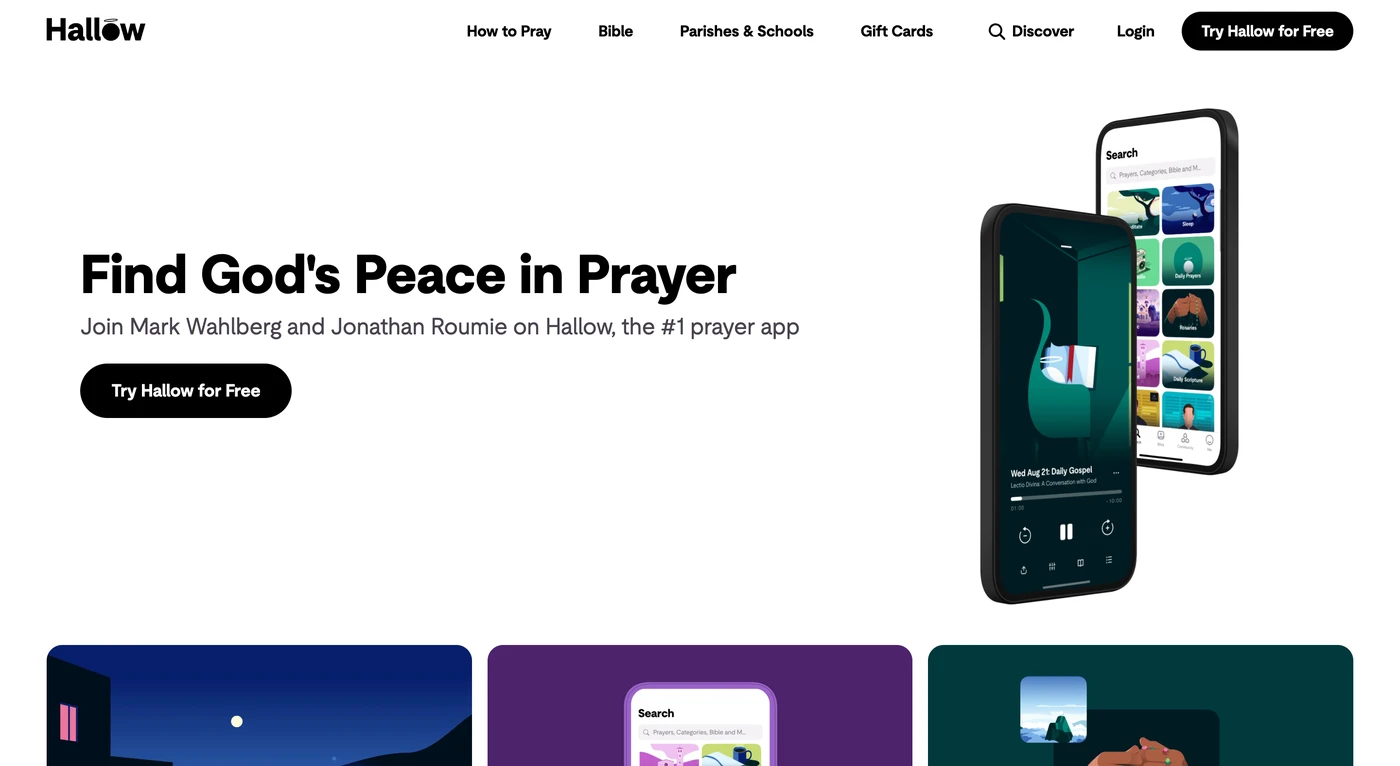
What is an embedded form?
An embedded form is a form placed inside a web page's layout, between existing content, instead of appearing on top of the page. Visitors see it as they scroll and fill it in without leaving the page.
The same spot can hold other content too, such as a call to action, product recommendations, an offer or a countdown. That's why these blocks are also called website embeds or inline forms.
Embedded forms vs popups: when each format fits
Embeds and popups can carry the same offer. They differ in who sees the message, when they see it, and how much of the page it covers.
Here's how the two formats compare:
What differs
Embedded form
Popup
Where it appears
Inside the page, between existing content
In a window on top of the page
Who sees it
Visitors who scroll to it
Every visitor who matches the targeting rules
Effect on the visit
The page stays readable around it
The page is covered until the visitor answers or closes it
Best pages
Product, cart and article pages, plus footers
Landing pages and exit moments on any page
Typical goals
Ongoing signups, cross-sells and offer reminders
Welcome offers, exit offers and time-limited sales
The two formats work well together. A welcome popup can ask on the first visit. Embeds then keep the offer in view on product pages and articles for visitors who closed it.
Where to place embedded forms to get more clicks
An embed's results depend heavily on the page it sits on. Across sites using Wisepops, embeds on pages close to purchase got several times the clicks of embeds on home pages.
This table compares each page type with the home page on clicks and signups, with campaign goals and ideas that fit each one:
Place
Campaign goal
Campaign ideas
Results vs home page
Cart and checkout
Finish the order and raise the order value
Free-shipping threshold, discount code reminder, small add-on
9.8× clicks, 1.7× signups
Product pages
Answer questions before purchase and cross-sell
Delivery dates, return terms, gift or engraving options, matching products
4.7× clicks, 0.3× signups
Home page
Grow the email list and show what's new
Welcome offer signup, new collection, seasonal sale
Baseline
Blog articles
Turn readers into leads
Trial or guide offer matched to the topic, newsletter signup
0.7× clicks, 0.4× signups
Collection pages
Help visitors narrow their choice
Product finder quiz, category offer, best sellers
0.3× clicks, 0.4× signups
Source: Wisepops
Product page embeds get clicks but the fewest signups, so information and cross-sells fit there better than forms. Signup forms collected the most on cart and home pages.
Blog embeds have low rates per view, though articles with steady search traffic make up for it with volume. Here's how four stores use these placements.
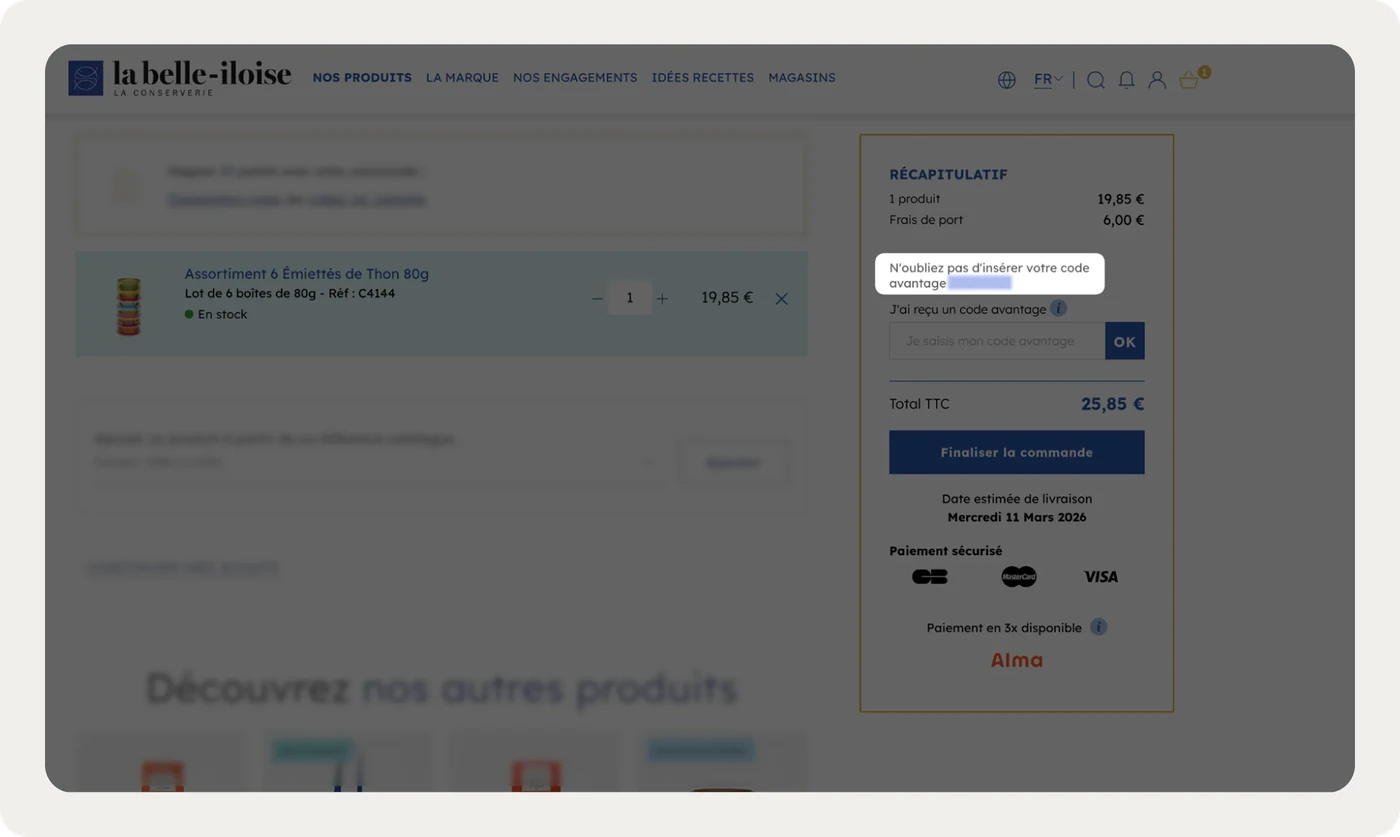
Cart and checkout pages
la belle-iloise, a canned seafood brand, uses an embed on its checkout page to remind shoppers about their discount code:
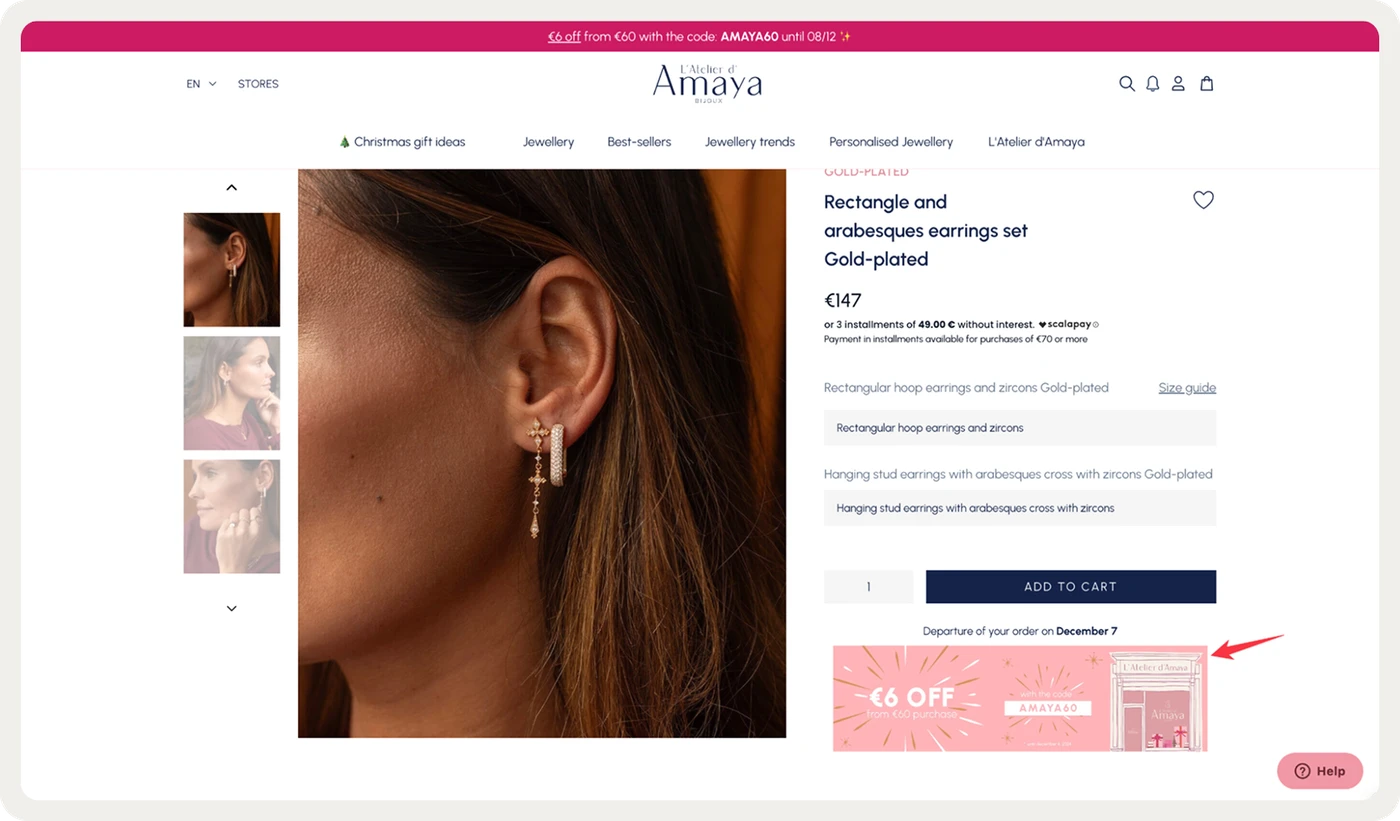
Product pages, below the add to cart button
L'Atelier d'Amaya, a jewelry brand, places a short reminder below the add to cart button while shoppers choose a piece:
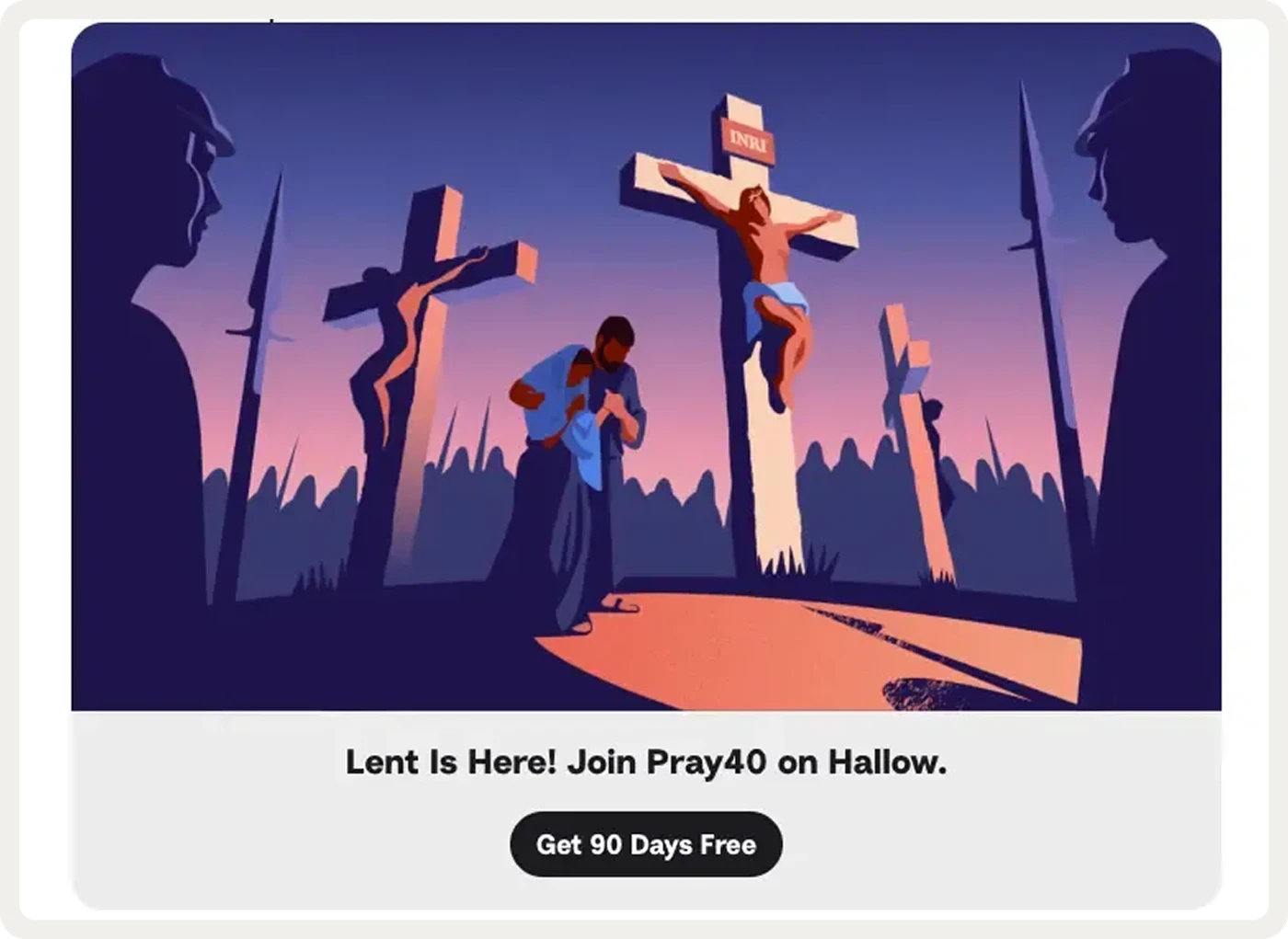
Blog articles
Hallow, a prayer and meditation app, added its free trial offer inside blog articles in several languages. Those embeds brought in 4,195 leads:
Website footers
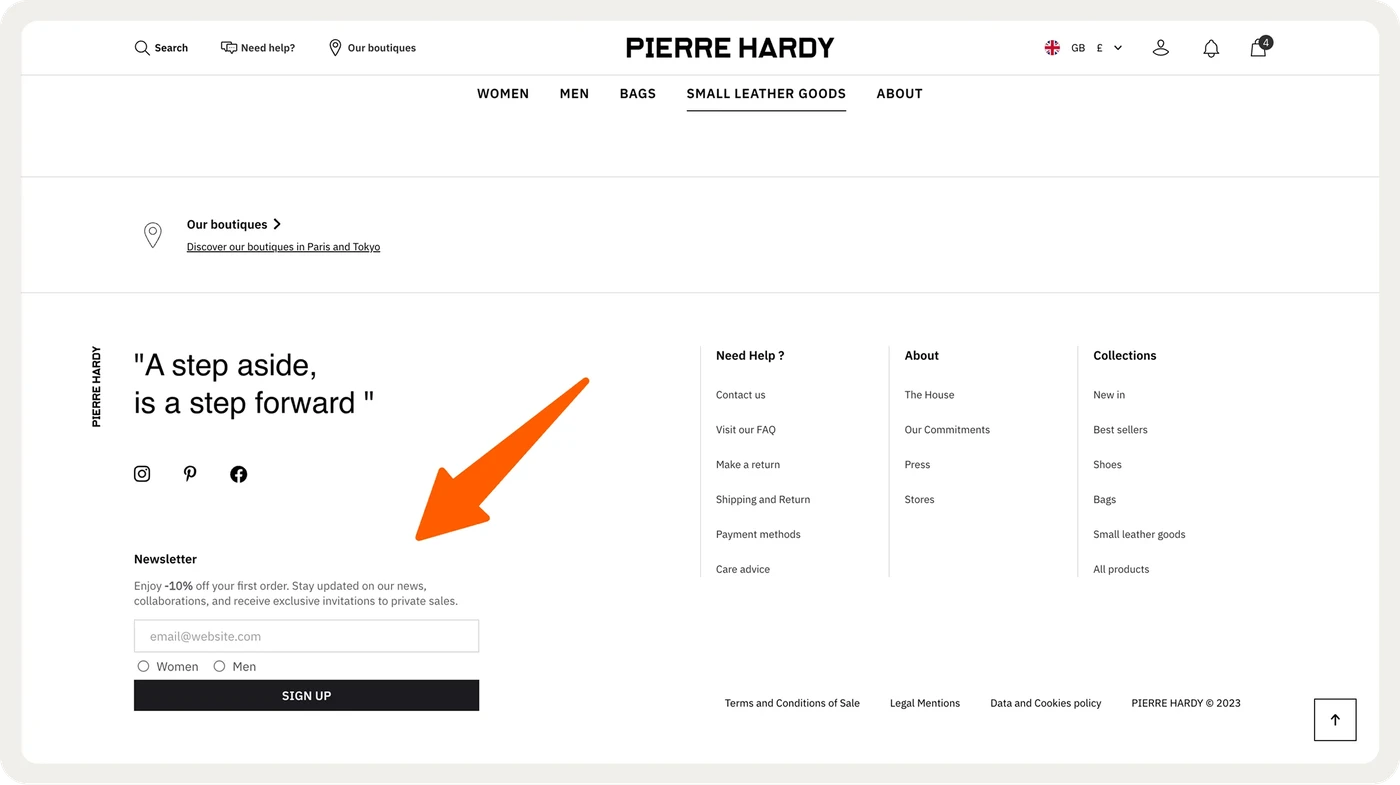
A footer form appears on every page and reaches visitors who scroll to the end, often while looking for shipping terms or contact details.
Pierre Hardy, a luxury footwear and leather goods brand, runs embedded signup forms in its website footer:
Types of embedded forms, with examples
An embed can hold much more than an email field. Each type below comes with an example from a live store, except surveys, where the format is the same for every site.
Email signup forms
A signup embed collects emails or phone numbers in exchange for a clear benefit, such as a first-order discount or early access. Asking only for an email keeps the form short enough to fill in while scrolling.
Signup embeds sit alongside other capture points, such as a welcome popup and checkout opt-ins, as one of several ways to build an email list.
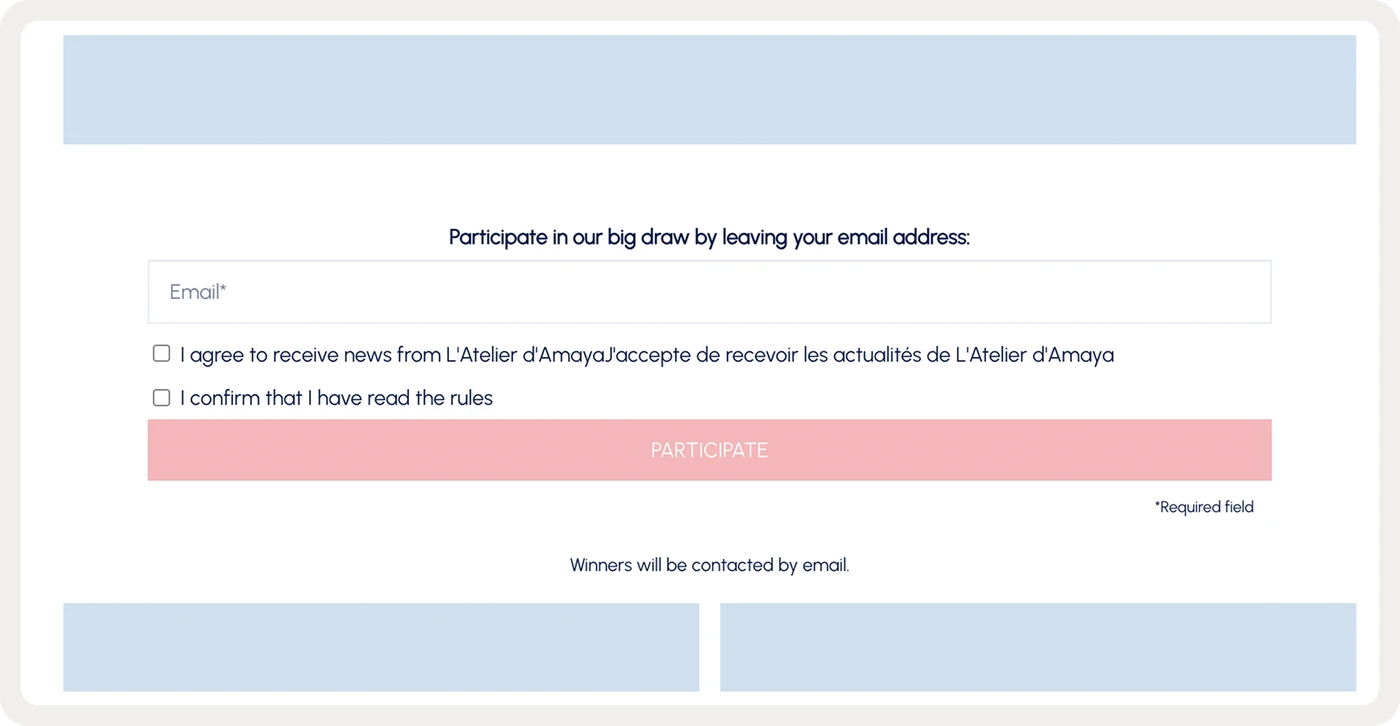
L'Atelier d'Amaya places signup forms in several spots across its site, each one matched to the page it sits on:
You'll find more designs in these signup form examples, from single-field forms to multi-step ones.
Calls to action inside content
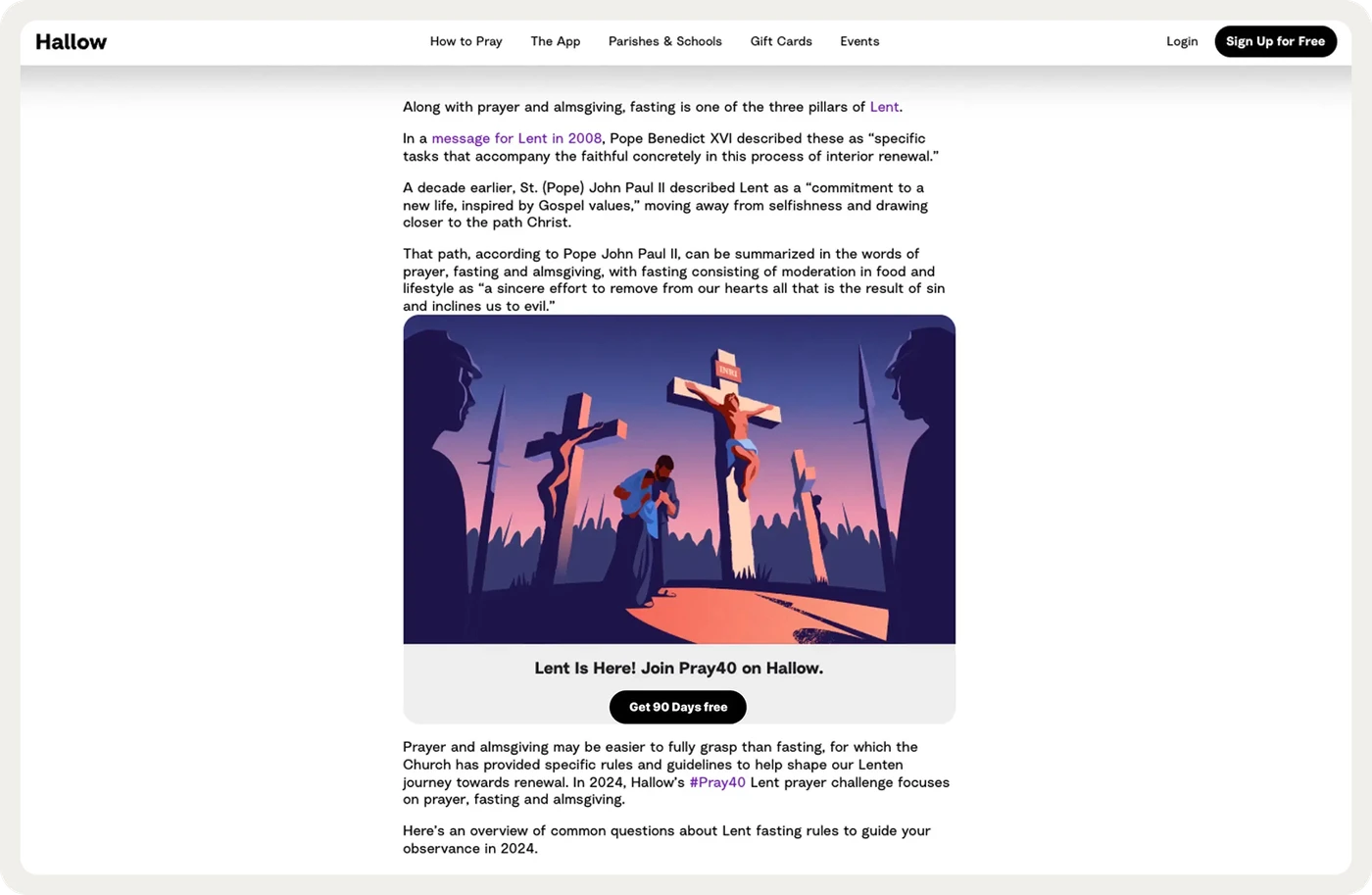
A content embed points readers to the next step, such as a trial, a guide or a collection, in the middle of an article. Matching the embed's design to the article makes the block look like part of the page.
Hallow kept one illustration and translated the copy, so each language version of its blog showed the trial offer in the reader's language:
Product recommendation blocks
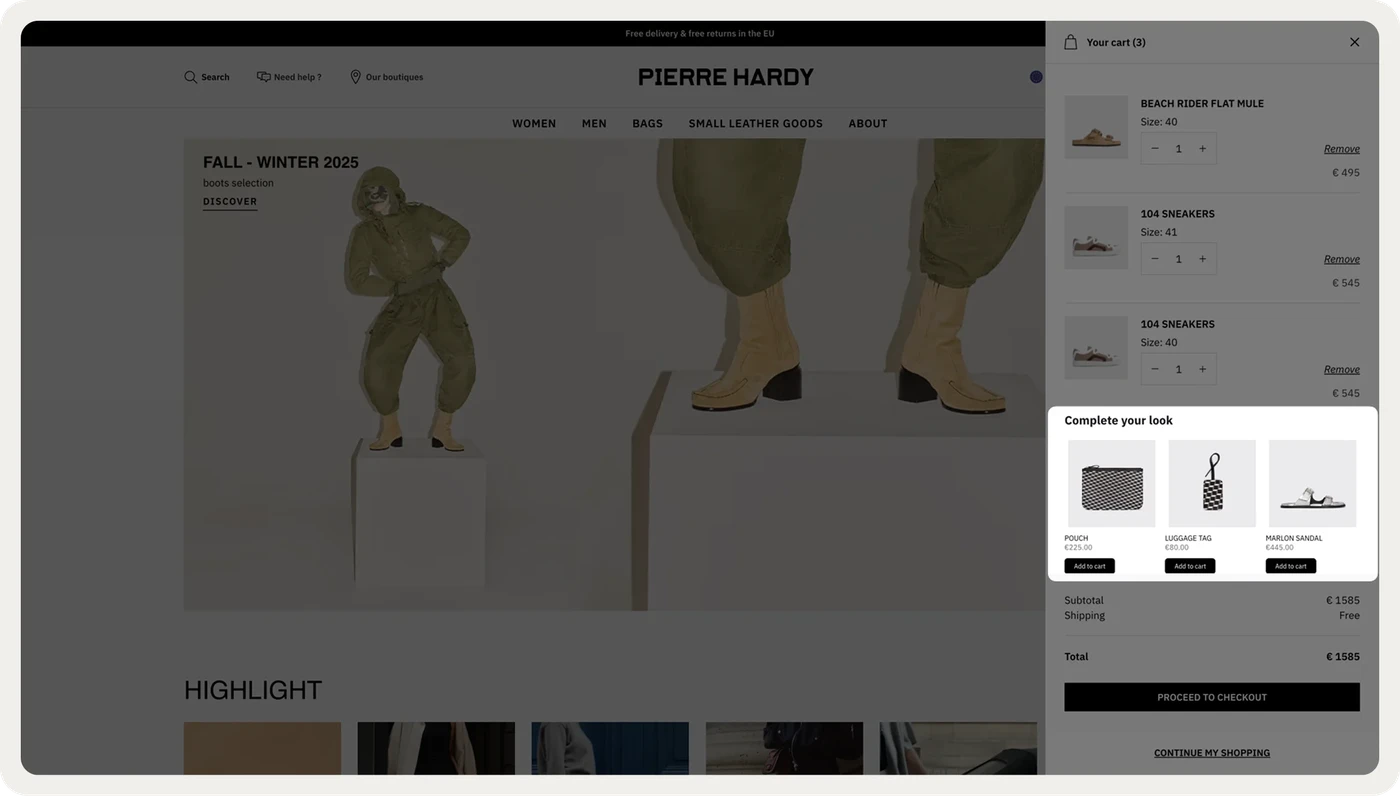
A recommendation embed shows products picked for the visitor, such as pieces that complete an outfit or best sellers for new visitors. On Shopify stores, AI product recommendations can fill these blocks from browsing and cart data.
Pierre Hardy runs a complete your look embed that suggests matching pieces:
Offer banners and countdowns
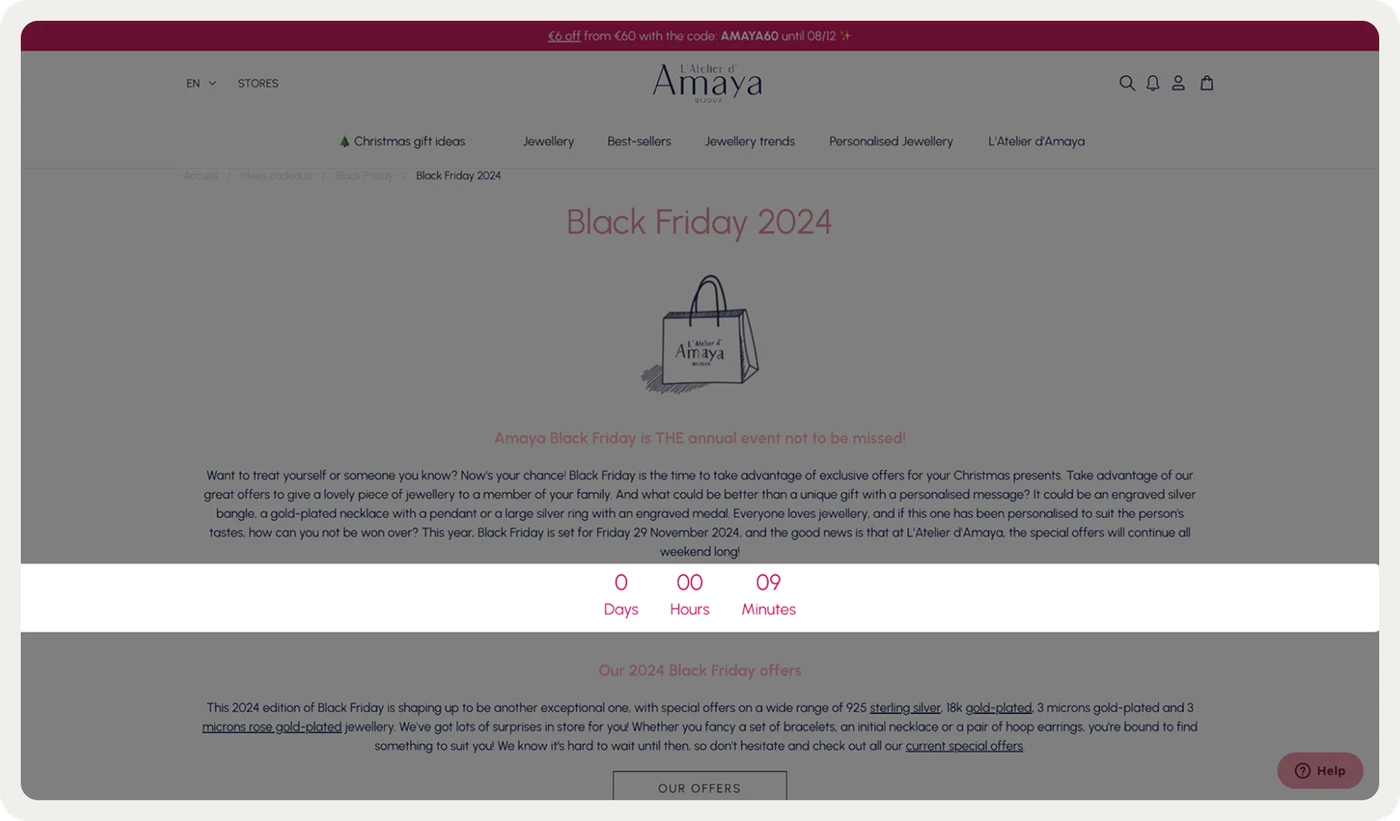
An offer embed announces a sale, a code or a deadline inside the page. A countdown adds a date, so visitors can plan a purchase for when the sale opens.
L'Atelier d'Amaya ran a countdown to Black Friday in an embed on its dedicated sale page:
Store services and information
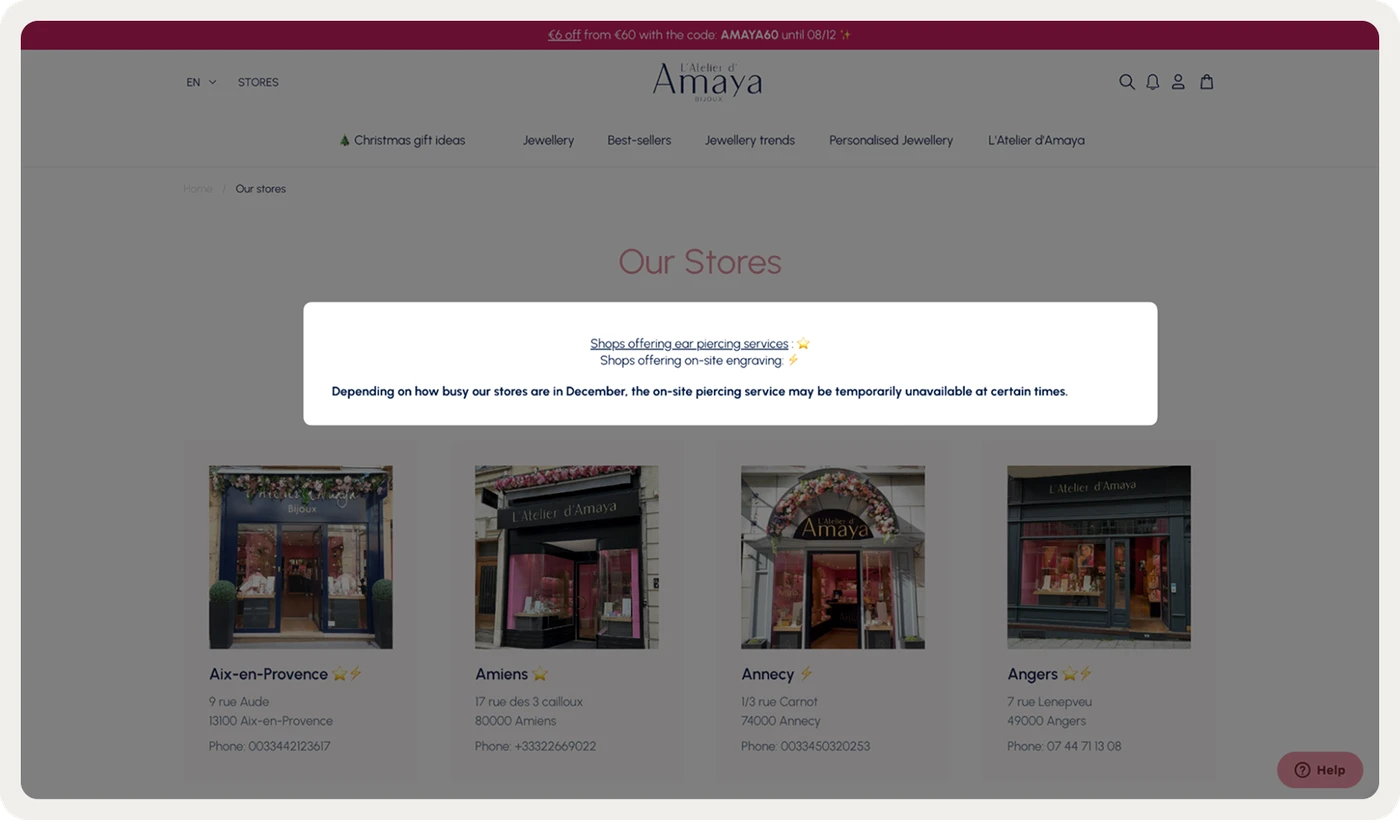
Some embeds answer questions instead of selling, covering delivery times, gift wrapping, returns or in-store services. Placed near the product, they remove a reason to leave the page and look for the answer elsewhere.
L'Atelier d'Amaya uses one to tell shoppers that its stores offer piercing and engraving:
Surveys and quizzes
An embedded survey or quiz asks visitors what they need and collects zero-party data, the preferences visitors share directly. Later campaigns and emails can use those answers to show more relevant products.
A one-question poll under an article and a product finder on a category page are easy places to start. Both ask about what the visitor is already reading.
Personalize embedded forms to match each visit
The same spot on a page can show different content to different visitors. Personalization uses what you know about the visit to choose that content, and the most common rules are these:
Page and topic: match the offer to the product category or article subject, so a skincare reader sees a skincare guide.
Language and country: show copy in the visitor's language, the way Hallow targeted its blog embeds by the language in the URL.
Traffic source: repeat the offer from an ad or email for visitors who arrive from that campaign, using the source or UTM parameters.
New or returning visitor: offer a first-order discount to new visitors, and new arrivals or loyalty points to returning ones.
Subscription status: hide signup forms from existing subscribers and use the space for recommendations or offers instead.
Cart contents: show the amount left to reach free shipping, or an accessory that fits what's already in the cart.
Starting with one rule that splits a large group, such as new and returning visitors, gives you enough data to compare quickly. You can add more rules once the first split shows a difference.
The same rules apply to popups, and these personalized popup campaigns show how stores combine page, cart and visitor data.
How to add an embedded form to your website
There are two ways to add an embed: paste code into the page, or place it with an onsite tool that inserts it for you. Pasted code suits one fixed form, while an onsite tool suits embeds you'll want to target, test and change.
How to add an embed code from your form or email tool:
Build the form in your email or form tool and copy its embed code, usually an HTML snippet with a script.
Open the page in your site builder and add a custom HTML or code block where the form should appear.
Paste the code, save the page, and preview it on desktop and mobile.
Submit a test entry and check that the contact reaches the right list with the right tags.
How to place an embed with an onsite tool:
Open the page where the embed should appear, right-click the spot, and choose Inspect.
Find the element the embed should sit before, after or inside, and copy its CSS selector.
Paste the selector into the tool and choose the embed's position relative to that element.
Set the targeting rules, preview the page, and publish the campaign.
An element with an id makes the most reliable anchor. Selectors that start with # usually survive a theme update, while selectors built from the page's structure can break when the layout changes.
With our website embeds, you can change the copy, targeting and design later without editing your site's code.
Checks before you publish
Mobile layout: check spacing and button size on a phone. On sites using Wisepops, the median embed click rate on mobile was 1.9 times the desktop rate.
Consent: add a consent line and a privacy policy link where local rules require one. Here's how GDPR applies to signup forms.
Existing subscribers: exclude visitors who already signed up, so the space shows them something they can use.
Form delivery: confirm that each submission reaches your email tool with the source page recorded.
How to measure embedded form performance
Embeds sit inside the page, so some visitors who load a page never scroll far enough to see one. That's why an embed's results are best compared with other embeds on similar pages.
Popups reach every visitor who matches their rules, so their rates aren't a fair benchmark for a block lower in the page. Track these four numbers for each embed instead:
Click rate: clicks divided by displays, the main signal for content and offer embeds.
Signup rate: submissions divided by displays, for forms that collect emails or phone numbers.
Revenue per visitor: sales from visitors who saw the embed, divided by the number of those visitors.
Incremental revenue: the difference in revenue per visitor between people who saw the embed and a control group who didn't.
Click and signup rates show whether visitors engage. A control group shows whether the embed adds sales that wouldn't have happened anyway. A shopper who clicks a cart reminder might have bought without it.
With click rates in the low single digits, a test needs tens of thousands of visitors per variant to detect a real difference. The sample size calculator gives the number for your current rate before you start.
We run these tests against control groups in our experiments platform, which reports revenue per visitor for each variant alongside clicks and signups.
Embedded forms FAQ
What is an embedded form?
An embedded form is a form placed inside a web page, between existing content, instead of on top of it. Visitors fill it in without leaving the page or closing a window. Signup forms in footers and under articles are the most familiar examples.
How do I embed a form on my website?
Copy the embed code from your form or email tool and paste it into a custom HTML block on the page. You can also place the form with an onsite tool by choosing a CSS selector. That second route lets you target and test the form without editing the page.
Can you embed a form in an email?
Many email clients don't run the scripts and form fields an embedded form needs, so the form may not display or submit. The usual approach is a button in the email that links to a page with the form embedded.
Do embedded forms or popups collect more emails?
Popups usually collect more signups per display, because every targeted visitor sees them at a chosen moment. Embeds add signups without interrupting the visit and reach visitors who closed a popup. Running both, with existing subscribers excluded, covers the two groups.
Can an embed show different content to different visitors?
Onsite tools can change an embed's content based on the page, language, traffic source, cart or subscription status. Embed codes pasted from email tools usually show the same form to every visitor.
Get started
in minutes
Start converting more visitors today.
Get started in minutes and see results right after.